# Infusionsoft/Keap

<figure><img src="/files/2dKBFtmTdGA6J5JjJYBU" alt=""><figcaption></figcaption></figure>

**SETUP Plugins on CRM**

**STEP 1**

Go to Admin->Plugins->Email Service Providers

**STEP 2**

Scroll down to **Infusionsoft/Keap**

<figure><img src="/files/NBi5pDjK77mKZ59R4y1h" alt=""><figcaption></figcaption></figure>

**STEP 3**

Click the green **Activate** button to activate **Keap**

<figure><img src="/files/6x9DEfoO4tVpaZyki0A5" alt=""><figcaption></figcaption></figure>

**STEP 4**

Click the green Connect button. Do not enter the tokens.

<figure><img src="/files/GUreBaZEJYG2bRByuiJp" alt="" width="440"><figcaption></figcaption></figure>

**STEP 5**

Edit the plugin. Click the link to authorize Konnektive to access your Infusionsoft/Keap account

<figure><img src="/files/QZZp1m4ZRxiY8DVaEBDl" alt="" width="563"><figcaption></figcaption></figure>

**STEP 6**

Login to Keap

<figure><img src="/files/d23KdRF6mO6TcAVBTeYl" alt="" width="494"><figcaption></figcaption></figure>

**STEP 7**

Click the blue Allow button

<figure><img src="/files/lcimJyXhwfo1klerDDkb" alt="" width="454"><figcaption></figcaption></figure>

**STEP 8**

If success, you will see the result below

<figure><img src="/files/tLb2nAesZjU5MKi8YJqv" alt=""><figcaption></figcaption></figure>

Refresh the page to see **access\_token** and **refresh\_token** on the Advanced Setup page. Do not change the tokens on this page.

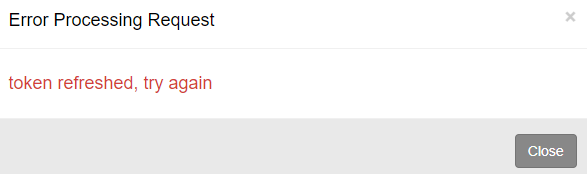
**Note: When the access token expires, a new access token needs to be requested with the refresh token. When you see the information below, please try again.**

<figure><img src="/files/jvcF23YvsotSWhrc74rG" alt=""><figcaption></figcaption></figure>

**SETUP Campaigns on Keap**

**STEP 1**

Login to Keap. Create a campaign

<figure><img src="/files/ITqntlgyMb1kXlOHMlzJ" alt="" width="404"><figcaption></figcaption></figure>

**STEP 2**

Create a sequence

<figure><img src="/files/5h4JojfB2an43j0iCEgc" alt="" width="150"><figcaption></figcaption></figure>

**STEP 3**

Create an opportunity

<figure><img src="/files/SWEL5vvBJxmyC41t01wb" alt=""><figcaption></figcaption></figure>

**STEP 4**

Connect the sequence to the opportunity

<figure><img src="/files/kRtljB2cg14XnMT8lCYA" alt="" width="274"><figcaption></figcaption></figure>

**STEP 5**

Create API goal and set Integration = **ks748** and Call Name = **APICall**

<figure><img src="/files/GJea0QO4GIkwKGYbOhDM" alt="" width="438"><figcaption></figcaption></figure>

**STEP 6**

Connect the API goal to the Sequence

<figure><img src="/files/tgh6ZnUQeNWeOIGhS60I" alt="" width="337"><figcaption></figcaption></figure>

**STEP 7**

Publish the campaign

<figure><img src="/files/LB3HTakwzE3svU37cJsc" alt=""><figcaption></figcaption></figure>


---

# Agent Instructions: Querying This Documentation

If you need additional information that is not directly available in this page, you can query the documentation dynamically by asking a question.

Perform an HTTP GET request on the current page URL with the `ask` query parameter:

```
GET https://help.konnektive.com/konnektive-crm/admin-setup/plugins/email-service-providers/infusionsoft-keap.md?ask=<question>
```

The question should be specific, self-contained, and written in natural language.
The response will contain a direct answer to the question and relevant excerpts and sources from the documentation.

Use this mechanism when the answer is not explicitly present in the current page, you need clarification or additional context, or you want to retrieve related documentation sections.