> For the complete documentation index, see [llms.txt](https://help.konnektive.com/llms.txt). Markdown versions of documentation pages are available by appending `.md` to page URLs; this page is available as [Markdown](https://help.konnektive.com/konnektive-crm/admin-setup/plugins/data-sources/zendesk.md).
# Zendesk
This article is a guide to connect your Zendesk account with Konnektive.
**Note: Konnektive users can still use the “Checkout Champ” Zendesk application. A second app under the name “Konnektive CRM” is still in review by Zendesk.**
* [Step 1: Add an API User for Zendesk](#step-1-add-an-api-user-for-zendesk)
* [Step 2: Configure Zendesk](#step-2-configure-zendesk)
* [Step 3: Test Zendesk](#step-3-test-zendesk)
{% hint style="info" %}
Zendesk Konnektive Integration Documentation
{% endhint %}
***
### Step 1: Add an API User for Zendesk
Follow the instructions here to add an API User in Konnektive. Take note of the loginId and password for Step 2**.**
Create the Zendesk plugin.
[Create An API User](/konnektive-crm/admin-setup/create-an-api-user.md)
After creating the user go back to edit and save the user again
{% hint style="warning" %}
The user must have only “ZENDESK” listed in the **IP Whitelist** field. Do not list any other IP addresses.
{% endhint %}
{% hint style="info" %}
The user must have access to the following endpoints:
* Update Order
* Query Orders
* Refund Order
* Cancel Order
* Query Customers
* Add Customer Note
* Update Customer
* Query Purchase
{% endhint %}
### Step 2: Configure Zendesk
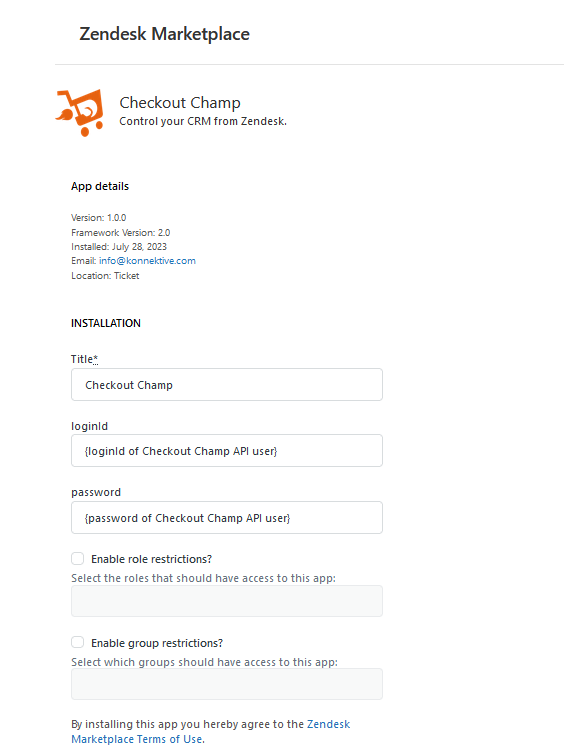
**Login to Zendesk and navigate to Admin → Admin Center → Apps and integrations → Zendesk Support Apps → Marketplace**
Enter the loginId and password for your Konnektive API user.
### Step 3: Test Zendesk
Orders and customer information are retrieved from Konnektive based on the email address used in the Zendesk ticket. Confirm that a Zendesk ticket populates the correct information by opening a ticket created by a customer that exists within your Konnektive account.