> For the complete documentation index, see [llms.txt](https://help.konnektive.com/llms.txt). Markdown versions of documentation pages are available by appending `.md` to page URLs; this page is available as [Markdown](https://help.konnektive.com/konnektive-crm/gateway-setup/gateways/braintree.md).
# Braintree
### Step 1 - Activate Braintree
Go to **Gateways** → **Gateway Integrations** and select Braintree. Click on **+ Activate**.
### Step 2 - Add your Braintree credentials
Now the **Create New Gateway** page will appear. Double check that Braintree is selected in the gateway field and fill in the rest of the info on the gateway profile.
Obtain **merchant\_id**, **public\_key**, and **private\_key** from Braintree (additional notes on this below)
Obtain **merchant\_acct\_id** from Braintree. This may be optional depending on your setup at Braintree. The merchant account ID is a unique identifier for a specific merchant account at Braintree. It is used to specify which merchant account to use when creating a transaction. It is not the same value as **merchant\_id**.
Choose to process with Braintree native 3DS using the **secure3DS** box. 3DS requires the checkout page to support [standard redirect handling](/konnektive-crm/gateway-setup/basic-3ds-instructions.md).
Check the **storeInVaultOnSuccess** box if you need one-click upsells or recurring billing on this gateway. This enables the customer vault at Braintree.
Choose to **sendProductDetails**
Choose to use Braintree’s test server. Be sure to uncheck **useTestServer** when ready for live traffic.
***
**Here are the steps to get your Braintree keys.**
{% hint style="warning" %}
These steps may change if Braintree's platform is updated.
{% endhint %}
Step 1: Log in to your Braintree account.
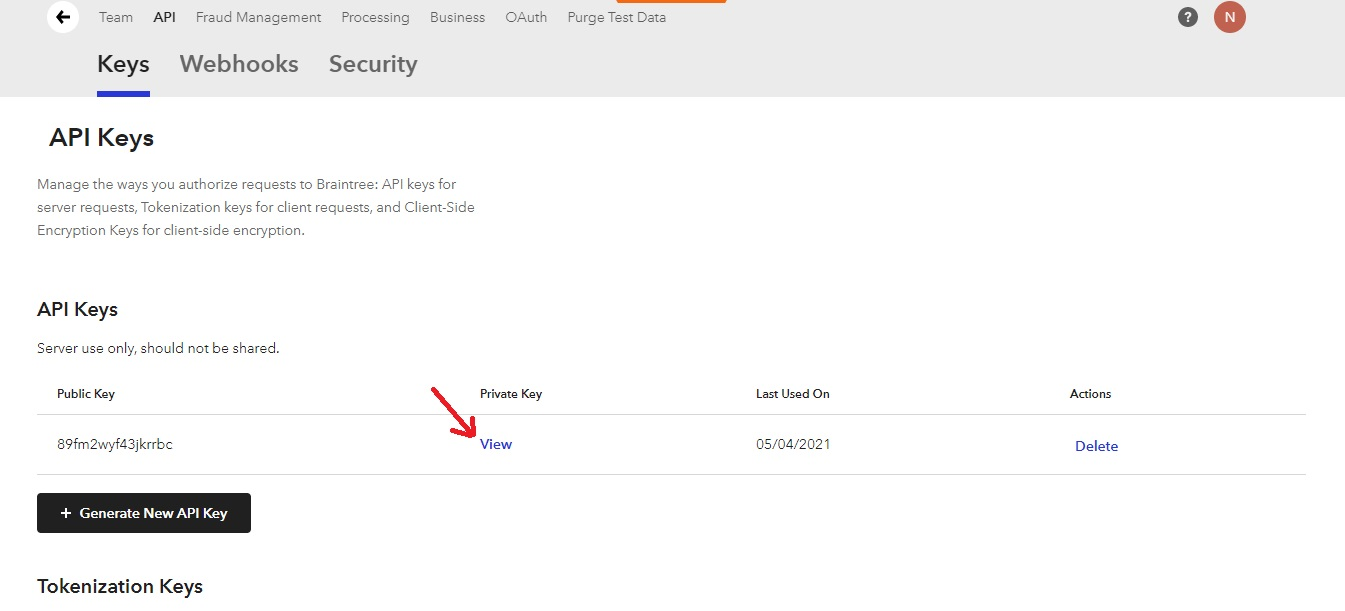
Step 2: Click on the Settings icon and select ‘API’ from the list that flows down.
The API keys page will appear.
Step 3: Under the API keys, click on the ‘view’ button. You can get the public key, private key and merchant id there