> For the complete documentation index, see [llms.txt](https://help.konnektive.com/llms.txt). Markdown versions of documentation pages are available by appending `.md` to page URLs; this page is available as [Markdown](https://help.konnektive.com/konnektive-crm/crm-setup/call-center-setup/adding-and-editing-call-centers.md).
# Adding and Editing Call Centers
Select **CRM** -> **Call Centers** on the navigation side bar.
To add a **Call Center**, click the green **+ button**.
Enter a Call Center name and click the **Create Call Center** button.
There are additional options when you edit a Call Center. To edit a Call Center, click the blue **Edit button**.
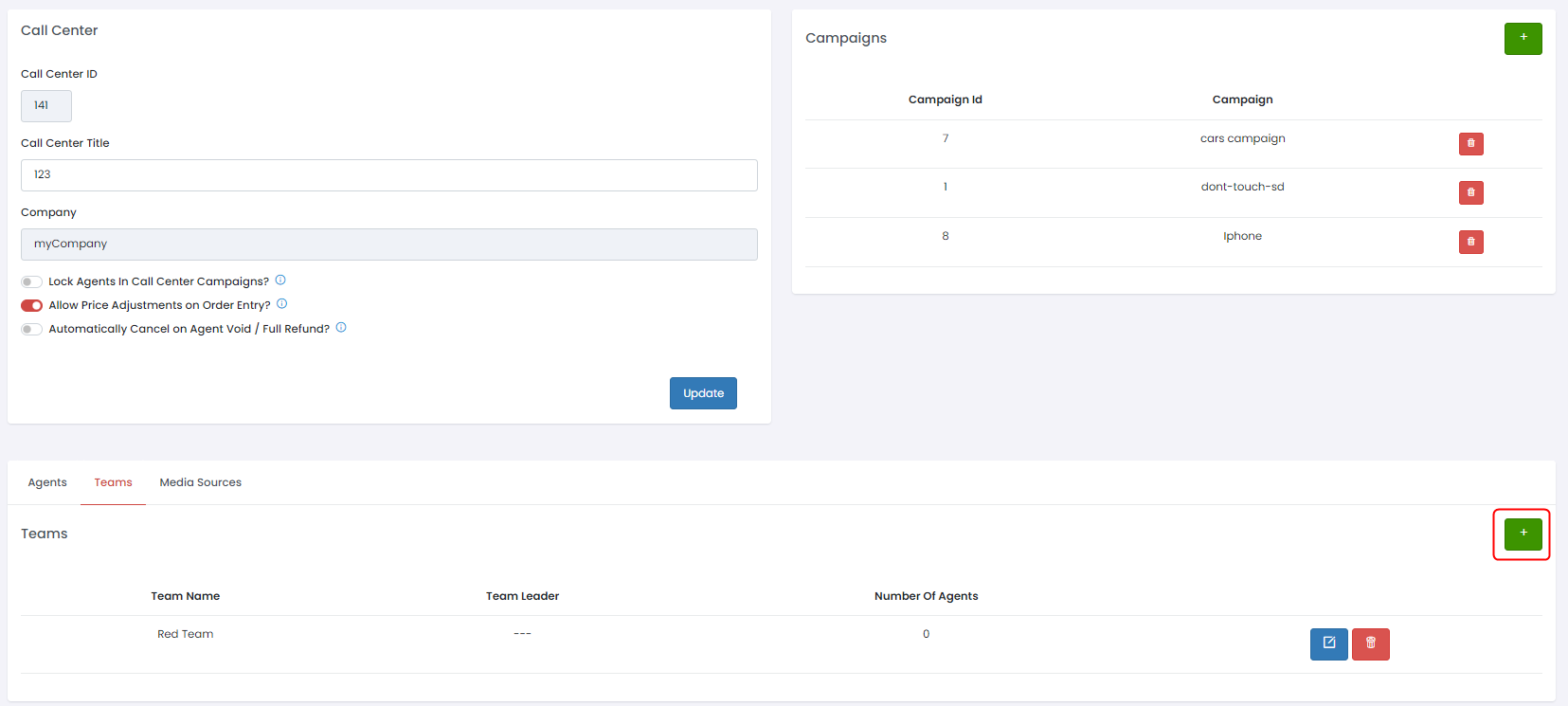
In the Call Center edit screen, you can **Assign Campaigns, Add Agents and Teams, and Assign DNIS or ANI**.
To associate a campaign with a call center, look at the **Campaigns** area and click on the green **+ Button**. Select a campaign from the dropdown and click **"Add Campaign".** Campaigns can be removed after creation.
To add an agent to a call center, navigate to the **Agents** tab and click on the green **+ Button**. Select a user, role, team, and commission rate and click "**Add Agent".** These values can be edited after creation.
To add a team to a call center, navigate to the **Teams** tab and click on the green **+ Button**. Enter a team name and click "**Create Team".** The team name can be edited after creation.
Within the call center you can assign **DNIS or ANI**. To add a source, navigate to the **Media Sources** tab and click on the green **+ Button**. Enter a range of *DNIS or ANI* for call tracking. You can assign your media sources to your toll free number. Add a title, assign a media type and campaign, and enter a media market. These values can be edited after creation.
All of the **Telephone Agents** and **Team Leaders** will be activated by uploading a CSV file in a simple format or by adding them one by one.